Connect Jamf Pro to Tenable Hexa AI
The following steps allow you to configure a Jamf Pro connection for use with Tenable Hexa AI from start to finish. This connection is available in Tenable One Vulnerability Management and Tenable Exposure Management.
Connection Details
| Details | Description |
|---|---|
| Supported product | Jamf Pro |
| Authentication type | Basic authentication, using the Jamf Pro username and password for the account you want to use with Tenable Hexa AI. Tenable Hexa AI does not support API token authentication for this connection. |
| Credential scope | Per connection, and per user. Each connection uses its own Jamf Pro credentials, and belongs only to the user who creates it. Other users in the same Tenable One Vulnerability Management or Tenable Exposure Management container do not see or share the connection. |
Connection Status
The connection detail page shows one of the following statuses:
| Status | Description |
|---|---|
| Not connected | The connection has not been saved, or Tenable has not yet validated it. |
| Connecting... | Tenable is validating the connection. |
| Connected | Tenable validated the connection successfully and can use it. |
| Failed to connect | Tenable could not validate the connection. Check the Server URL, Username, and Password box values, then try again. |
Prerequisites and User Permissions
Before you begin:
- Confirm you have Jamf Pro credentials (a username and password) for the Jamf Pro server you want to connect.
Add a Connection
To add a new Jamf Pro connection for use with Tenable Hexa AI:
-
In the left navigation, click
 Settings.
The Settings page appears.
- Click Hexa AI.
The Hexa AI page appears.
- Click the Connections tab.
The Connections tab opens. By default, the new Jamf Pro connection options appear.
Tip: If you already have an existing Jamf Pro connection, the details for that configuration appear.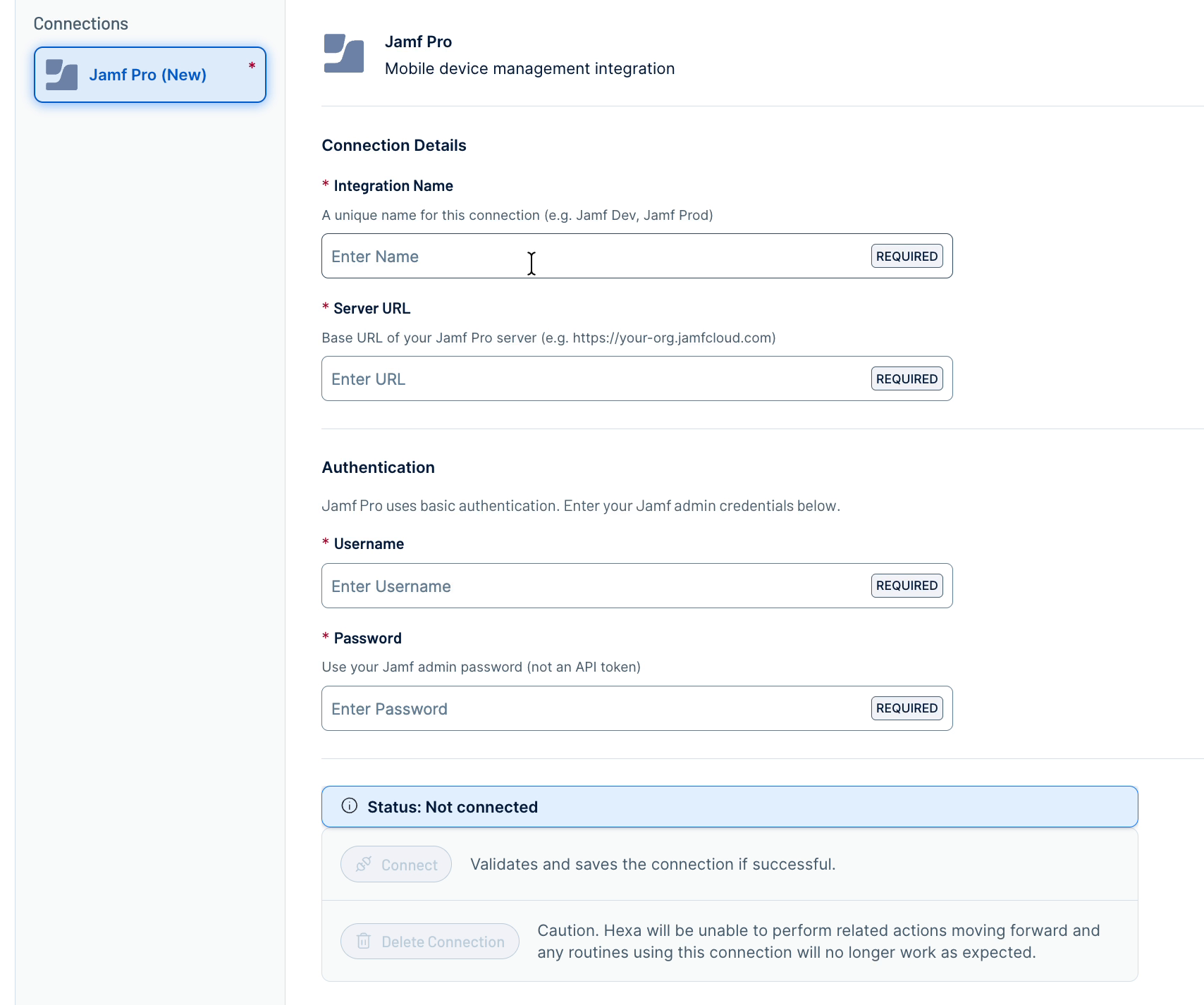
- In the Integration Name box, type a unique name for the connection (for example, Jamf Dev or Jamf Prod).
- In the Server URL box, type the base URL of your Jamf Pro server (for example, https://your-org.jamfcloud.com).
- In the Username box, type your Jamf Pro username.
- In the Password box, type your Jamf Pro password.
Tip: To modify an existing connection, retype the password. Tenable Hexa AI does not populate the Password box with a previously saved value.
- Click Connect.
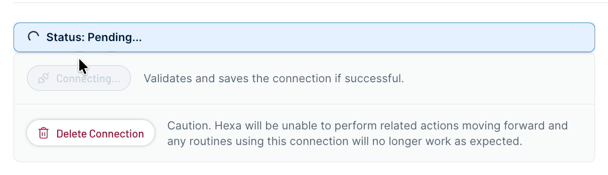
The status banner changes to Pending while Hexa AI validates the connection. If validation succeeds, a confirmation message appears and the status banner changes to Connected.
Reconnect a Connection
If you update a connection's Server URL, Username, or Password, or if Tenable Hexa AI reports an error using an existing connection, reconnect the connection to revalidate it.
To reconnect a connection:
- In the Connections list, click the connection you want to update.
The connection detail page appears.
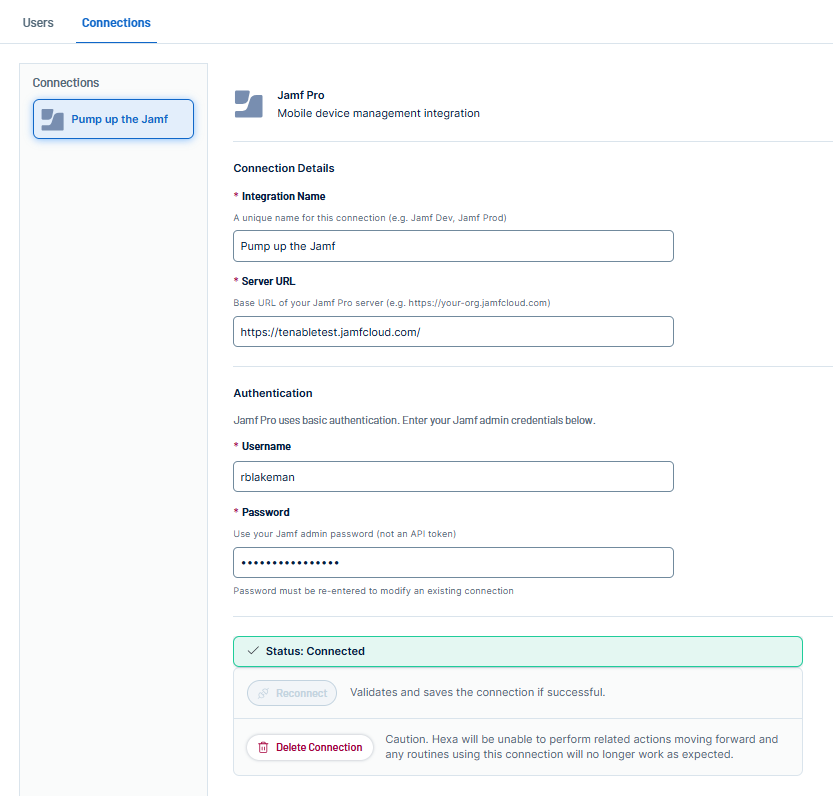
- Update the Server URL, Username, or Password box as needed.
- Click Reconnect.
The status banner changes to Connecting..., then to Connected if validation succeeds, or to Failed to connect if it does not.
Delete a Connection
Delete a connection to permanently remove it. After you delete a connection, Tenable Hexa AI can no longer perform Jamf Pro actions using it, and any routines that rely on it stop working.
To delete a connection:
- On the connection detail page, click Delete Connection.
The Delete Connection window appears.
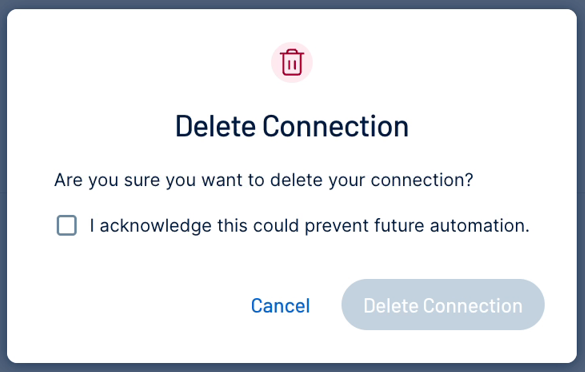
- Select the I acknowledge this could prevent future automation checkbox.
- Click Delete Connection.
A confirmation message appears, and Tenable removes the connection from the Connections list.