Virtual Machine Images
View and manage virtual machine images in your environment:
- For each virtual machine image, see a clear picture of its network exposure, identify installed software packages, and analyze associated vulnerabilities.
- Understand which of your virtual machine images have severe vulnerabilities, so that you can remediate these risks.
- View all software packages installed on a virtual machine image in your environment, or the packages installed on specific virtual machine image.
This is a how-to guide for viewing and managing virtual machine images.
- For a conceptual overview of workload protection capabilities, see Vulnerability Management.
- To configure VM image settings, see Virtual Machine Image Settings.
- For frequently asked questions, see FAQ: Vulnerability Management.
View All Virtual Machine Images
To view virtual machine images:
- In the Cloud Exposure Console, navigate to Explore > Compute > Virtual Machine Images.
- Filter the table to narrow the scope of the visible data. See Virtual Machine Image Column Data for more information.
- Click on a virtual machine image Name to View Resource Details.
- From the resource page, click on Workload.
-
Click one of the following tabs:
- Software — View software packages installed on the machine.
- Vulnerabilities — View Vulnerabilities associated with packages installed on the machine.
- Malicious Files — View potentially Malicious Files detected on the machine.
Run an On-Demand Scan
Tenable automatically scans every virtual machine at least once every 24 hours. If you want to scan a specific workload sooner than that, you can request an on-demand scan. When you initiate a scan, it pushes the scan to the top of the queue. Scan results will appear in the Cloud Exposure Console after the next periodic data synchronization performed by Tenable.
If you excluded the relevant account or virtual machine image from scanning, on-demand scanning is not available.
To run an on-demand scan:
- Navigate to, and then click on the relevant virtual machine. You can find virtual machines in Inventory > Virtual Machine Images, or in the Inventory view of the relevant cloud provider (for example, Explore > Inventory > Compute > Azure Virtual Machine Images).
-
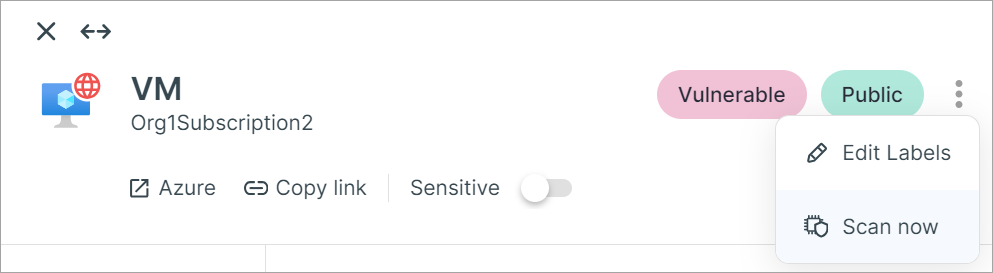
Click on the three dots icon and then click Scan Now.
A dialog appears, indicating that the scan was successfully requested.
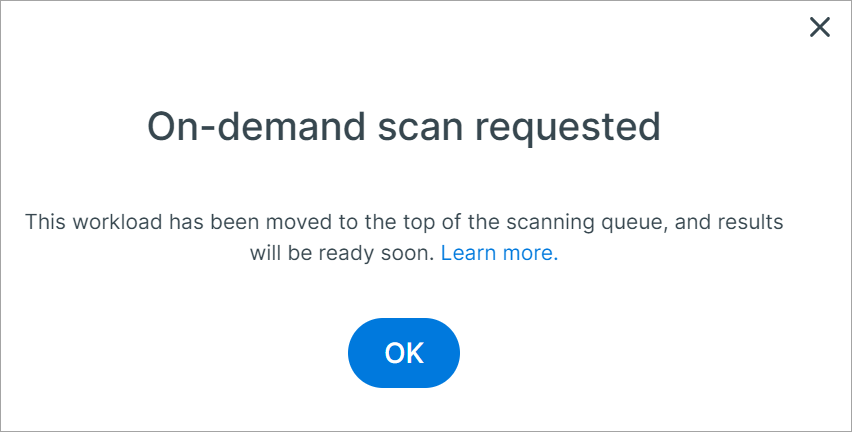
- Click OK.
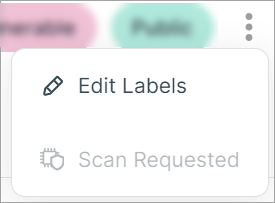
If a scan has already been requested, the button is disabled and displays Scan Requested.
Virtual Machine Image Column Data
The following columns appear in the table on the Virtual Machine Images page, and most of them can also be used to filter data in the table.
| Column | Description |
|---|---|
| Name | Virtual machine image name. |
| ID | Virtual machine image ID. |
| Account | The cloud account where the virtual machine image is located. |
| Date Added | The date that the virtual machine image was added. |
| Management | How is the virtual machine image being managed. |
| Access | What type of network access does the virtual machine image have. |
| Virtual Machines | Which virtual machines are included in the virtual machine image. |
| Operating System | The operating system and version running on the virtual machine image. |
| Software | A list of all software packages installed on the Virtual Machine Image. Where relevant, you can also see the file path of the package. This information can be useful when trying to determine where the package came from, and how to remediate any potential issues. For example, you may be able to identify if the package was installed as part of the base image, or if it was added to it. |
| Vulnerabilities | A breakdown of vulnerabilities found on the virtual machine image by Color-Coded Risk Severity. Click on a number to view a list of vulnerabilities for a given severity level. |
| Plugins | The plugins that are associated with the vulnerabilities discovered on the virtual machine image. Click the plugin link to view plugin details. |
| Findings | A breakdown, by severity, of the number of findings associated with the virtual machine image. Click on the number to view a searchable list of the findings. |
| Vulnerability Scan Status | Indicates whether or not the virtual machine image was successfully scanned. Also indicates the reason why a virtual machine image may not have been scanned. See Vulnerability Scan Status for more information. |
| Vulnerability Scan Time | A timestamp indicating the last time that Cloud Exposure scanned the virtual machine image. If the image has not yet been scanned, the value will be a dash (-). |
| Data Types | The sensitive data types detected on the resource. See Scanned Data Types for a complete list. |
| Data Categories | The data categories that map to the sensitive data types detected on the resource. |
| Data Sensitivity | The highest sensitivity level detected out of all scanned data. See Sensitivity Levels for more information. |
| Data Scan Status | Indicates whether or not the resource was successfully scanned. Also indicates the reason why a resource may not have been scanned. See Data Scan Status for more information. |
| Data Scan Time | A timestamp indicating the last time that Cloud Exposure scanned the resource. If the resource has not yet been scanned, the value will be a dash (-). |
| Labels |
Displays all labels applied to the virtual machine image, whether applied manually, automatically based on tags, or by the system. Hover over a label tag for more information. If a virtual machine image has more than one label, click on the icon to see any additional labels. The following labels are unique to Workload Protection, and are displayed in the following circumstances:
|
| Region | The AWS region to which the virtual machine image belongs. |
| Tags | Tags assigned to the virtual machine image. |
Vulnerability Scan Status
The Vulnerability Scan Status column indicates the current scanning status of the virtual machine image. The following table lists the various statuses, along with associated reasons for why the status might appear (many of these reasons appear as tooltips next to the status).
| Scan Status | Reasons |
|---|---|
| Pending | The virtual machine image is queued. |
| This scan is pending a manual step by Tenable to subscribe to the needed marketplace image. Please check back in a few hours. | |
| Disabled | This virtual machine image is excluded from scanning. |
| Virtual machine images Workload Protection scanning is disabled. | |
| This virtual machine image is not being scanned due to missing Workload Protection permissions. | |
| (In-account scanning) Scanning this image requires an AWS marketplace subscription. Login to your dedicated AWS account used for in-account scanning, go to the AWS marketplace, find the relevant AMI, and click 'Continue to Subscribe'. See In-Account Scanning for Vulnerability Management for more information. | |
| This virtual machine image has not been scanned because the configured snapshot resource group was deleted. | |
| This virtual machine image is not being scanned as there is an SCP that blocks Workload Protection permissions. | |
| Not supported | Scanning is not supported for this virtual machine image since the disk contains no supported partitions. |
| This virtual machine image is not being scanned since it was originated from the AWS Marketplace, and no product ID was found. | |
| Scanning is not supported for this virtual machine image since the disk is an instance store, and not an EBS volume. | |
| Scanning is not supported for this virtual machine image since its operating system encryption is enabled. | |
| This virtual machine image is not scanned since the resource belongs to a resource group on which there is a lock that prevents snapshot deletion. | |
| This virtual machine image is not being scanned since its disk exceeds the maximum size. | |
| Scanning is not supported for this virtual machine image since it is based on an AWS image that has been removed from the marketplace. We recommend upgrading to a more recent image. Note: This limitation occurs because snapshots or images (AMIs) sourced directly from the AWS Marketplace carry specific licensing and ownership restrictions that prevent them from being copied or shared for the scanning operation. |
|
| Scanning is not supported for this virtual machine image since it is fully managed by a cloud service. | |
| Scanned | Virtual Machine Image was scanned successfully. |