Manage Saved Views
You can manage your Saved Views in the following ways.
Create a Saved View
To create a saved view:
-
Use the query builder to build a query.
-
To the left of the query builder, click Saved Views.
A drop-down appears.
-
Click
 Save As New View.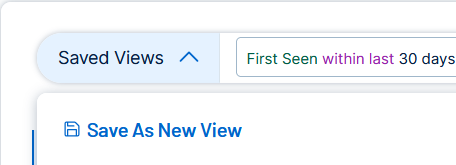
-
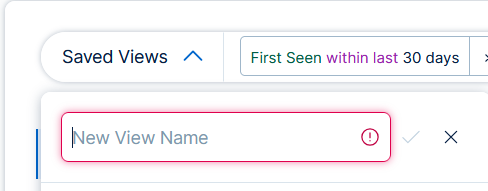
In the New View Name box, type a name for the saved view.
The name must be between 3 and 50 characters.
The name must only contain alphanumeric characters or the following special characters:
, . @ - _ & *
-
Click the
 button to save.
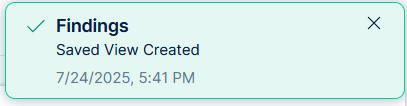
 A confirmation message appears.
Edit a Saved View
To edit a saved view:
-
To the left of the query builder, click Saved Views.
A drop-down appears.
-
In the drop-down, click a view to edit.
-
Make a change to one of the following:
-
The query.
-
The tree view.
-
The data grouping (Group By). See Using Group By Options on the Findings Page
-
Any of the following states of the table:
-
The shown column names.
-
Column ordering.
-
Column sorting.
-
Column width.
-
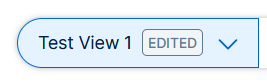
The drop-down shows that the view was edited.
-
-
Click on the drop-down.
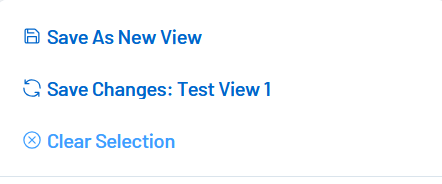
A menu appears.
-
Do one of the following:
-
Save As New View to create new view based on the edits.
-
Click
Save As New View.
-
In the New View Name box, type a name for the view.
The name must be between 3 and 50 characters.
The name must only contain alphanumeric characters or the following special characters:
, . @ - _ & *
-
Click the
button to save.A confirmation message appears.
-
-
Save Changes to confirm the changes made to the existing saved view.
-
Click
 Save Changes
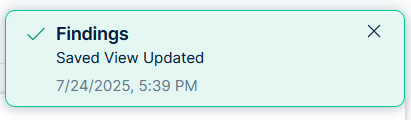
A confirmation message appears.
-
Click
-
Search for Saved Views
To search for a saved view:
-
To the left of the query builder, click Saved Views.
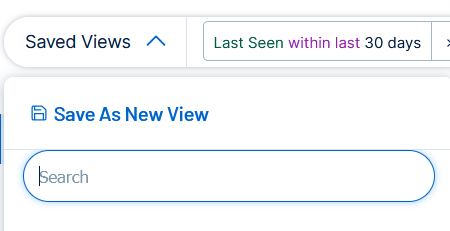
A drop-down appears.
-
In the Search box, type any token.
The search results populate the list based on this token.
Note: The search matches any saved view or folder name. If the query matches the folder name, Tenable One Vulnerability Management shows all underlying saved views.
Manage the Default View
Set the Default View
You can set any saved view to be your default view.
To set a default view:
-
To the left of the query builder, click Saved Views.
A drop-down appears.
-
To the right of the view, click the
 button.
A confirmation message appears.
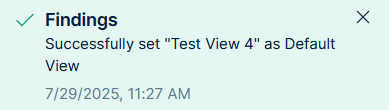
Your view is now the default view.
 Note: Each time you log into Explore, the default view for both Assets and Findings appears in the top section of the Saved Views drop-down.
Change the Default View
To change the default view:
-
To the left of the query builder, click Saved Views.
A drop-down appears.
-
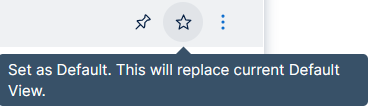
To the right of the view, click the
button.A confirmation message appears.
Your view is now the default view.
Remove the Default View
To remove the default view:
-
To the left of the query builder, click Saved Views.
A drop-down appears.
-
To the right of the current default view, click the
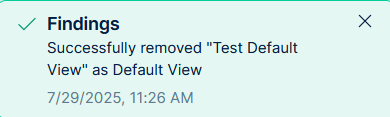
 button.
A confirmation message appears.
Move a Saved View
You can move saved views to new positions within the pinned or unpinned sections. You can also move saved views to or from existing folders within those sections.
To move a saved view:
-
To the left of the query builder, click Saved Views.
A drop-down appears.
-
Use the
 button to drag and drop the saved view to a new position in the section or move a saved view to or from an existing folder in the section by using the button.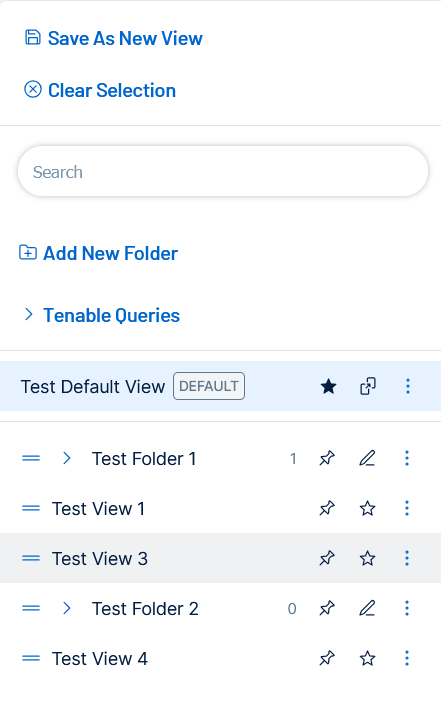
Share a Saved View
To share a saved view:
-
To the left of the query builder, click Saved Views.
A drop-down appears.
-
To the right of the view to share, click the
 button.
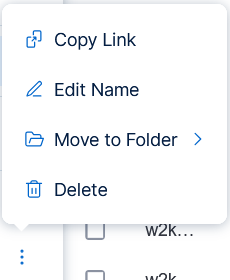
A menu appears.
-
Click
 Copy Link.
Pin a Saved View
To pin a saved view:
-
To the left of the query builder, click Saved Views.
A drop-down appears.
-
To the right of the view, click the
 button.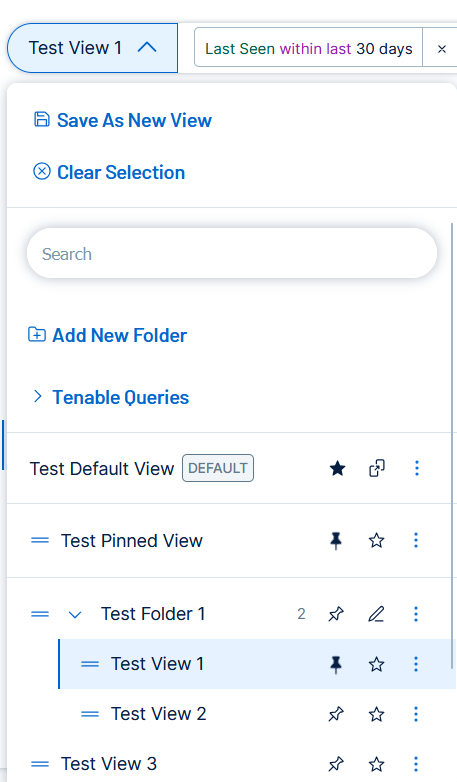
Pinned views appear in one of the following positions:
-
At the top of the view list, if there is no default view set.
-
Below the default view, if one is set.
-
At the top of the list within a folder.
-
Delete a Saved View
To delete a saved view:
-
To the left of the query builder, click Saved Views.
A drop-down appears.
-
To the right of the view to delete, click the
button.A menu appears.
-
Click the
 Delete button.
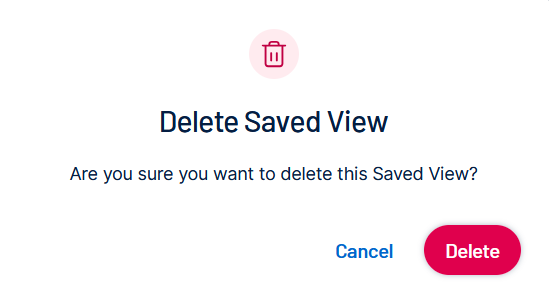
A pop-up appears.
-
Click Delete.
A confirmation message appears.

Manage Saved View Folders
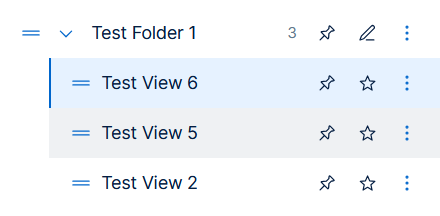
You can manage your saved view folders in the following ways:
Create a Saved View Folder
To create a saved view folder:
-
To the left of the query builder, click Saved Views.
A drop-down appears.
-
Click
 Add a New Folder.
 -
In the New View Name box, type a name for the view.
The name must be between 3 and 50 characters.
The name must only contain alphanumeric characters or the following special characters:
, . @ - _ & *
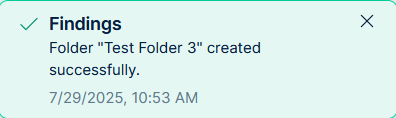
A confirmation message appears.
Pin a Saved View Folder
To pin a saved view folder:
-
To the left of the query builder, click Saved Views.
A drop-down appears.
-
To the right of the saved folder, click the
button.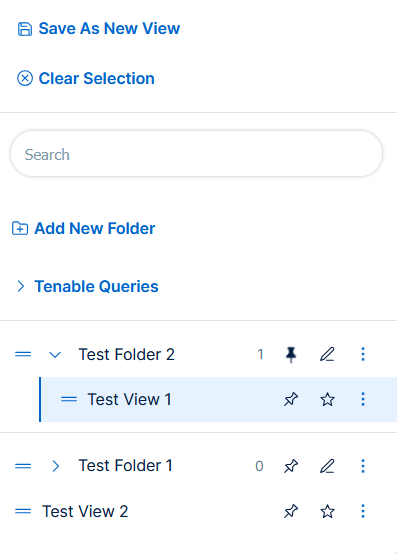
Pinned folders appear in one of the following positions:
-
At the top of the view list, if there is no default view set.
-
Below the default view, if one is set.
-
Move a Saved View Folder
You can move saved view folders to new positions within the pinned or unpinned sections.
To move a saved view folder:
-
To the left of the query builder, click Saved Views.
A drop-down appears.
-
Use the
button to drag and drop the folder to a new position in the section by using the button.
Delete a Saved View Folder
To delete a folder:
-
To the left of the query builder, click Saved Views.
A drop-down appears.
-
To the right of the folder to delete, click the
button.A menu appears.
-
Click the
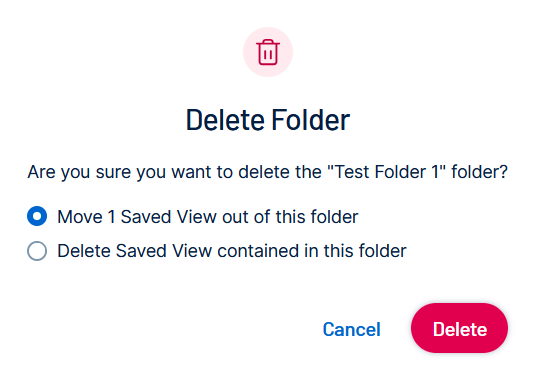
Delete button.A pop-up appears.
-
Do one of the following:
-
Select the option to move saved views out of the folder, before deleting the folder.
-
Select the option to delete the folder and all of the views within the folder.
-
-
Click Delete.
A confirmation message appears.